 Tablet App for Mac
Help
User manual for Version 11: PDF (A4). The same text opens in the app with the ? button.
Troubleshooting and per-app notes follow.
Before you start
Tested only on an Apple silicon Mac with macOS 27.0.1 and a Wacom Intuos4 Small (PTK-440). Other systems and tablets are untested. Use at your own risk.
Quick start
- Quit the Wacom driver if it is running (see Wacom driver conflict).
- Open Tablet App for Mac. Allow Input Monitoring and Accessibility when macOS asks.
- On Home, check the tablet card shows your tablet as connected.
- Open the tablet, choose Pen in the Tool row, and set Tip Feel.
- Set Mapping to the display you draw on.
- Under Functions, set the ExpressKeys and the Touch ring modes.
- Click Save in the footer. Unsaved changes are kept and offered again after a shutdown.
- Test in Scribble.
Introduction and requirements
Tablet App for Mac sets up a pen tablet on macOS: pen feel, buttons, mapping, ExpressKeys and Touch Ring modes, with per-app settings. Tablet input comes from the tablet driver (built on OpenTabletDriver), which the app starts.
- A Mac with Apple silicon.
- The tablet driver, built on OpenTabletDriver (included in the app).
- Input Monitoring and Accessibility permissions (Accessibility is called Device Control and Data Access on macOS 27).
- Uninstall the Wacom driver first, as both can't run at once.
Install and first launch
- Copy Tablet App for Mac to Applications and open it.
- macOS asks for Input Monitoring (to read the tablet) and Accessibility (to send keys and clicks). Allow both in System Settings › Privacy & Security, then relaunch the app.
- The app starts its tablet driver. The menu bar icon stays while it runs.
- At login the app starts silently: only the pen icon in the menu bar shows. Click it to open the window.
- Only one copy runs. Opening the app again brings the running copy to the front.
Home
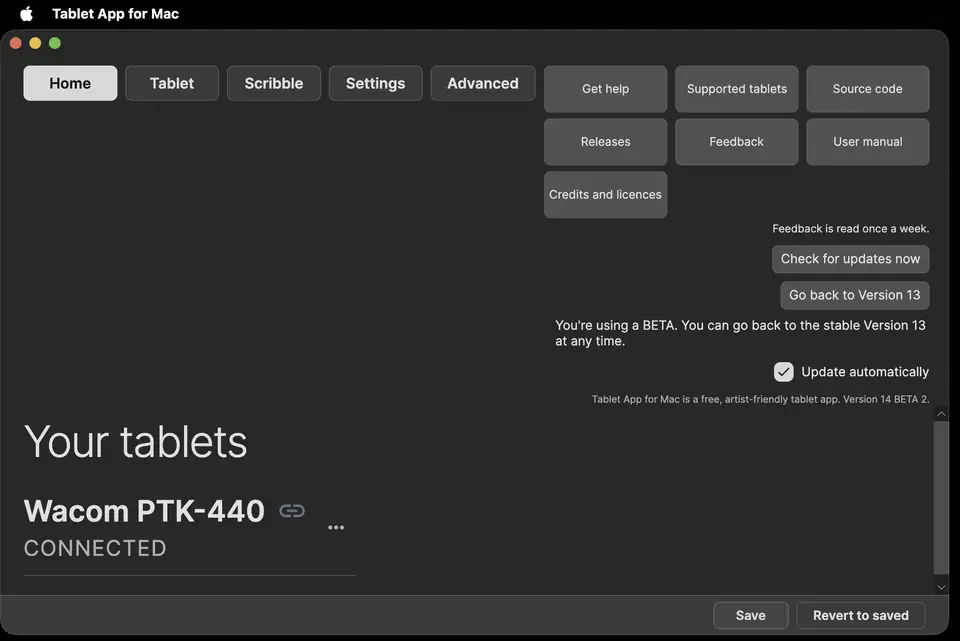
- Your tablets: one card per connected or remembered tablet. Click a card to open its settings.
- Card ⋯ menu: Open tablet settings, Forget this tablet.
- Health rows: problems found, each with Fix or a specific action where one exists. Fix works with the pen even while the pen tip or eraser is disabled.
- Open driver page: shown when the driver is not reachable.
Tablet page layout
- Device: the selected tablet. The switcher lists connected and remembered tablets.
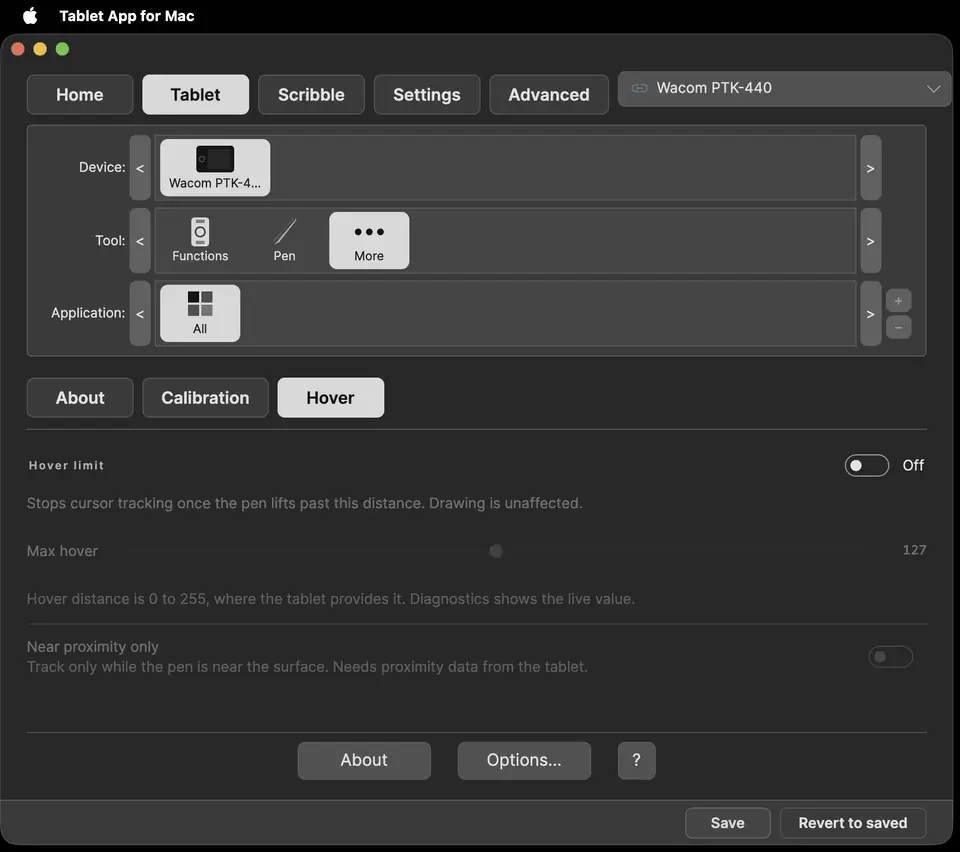
- Tool: Functions (ExpressKeys, Touch ring), Pen (pen, eraser, mapping), More (about, calibration, hover, filters, json).
- Application: All, or a specific app. + adds an app with its own settings; − removes it.
- Refresh reloads the tablet's settings from the driver.
- Footer: Options… (Settings), ? (this manual).
Tablet › Pen
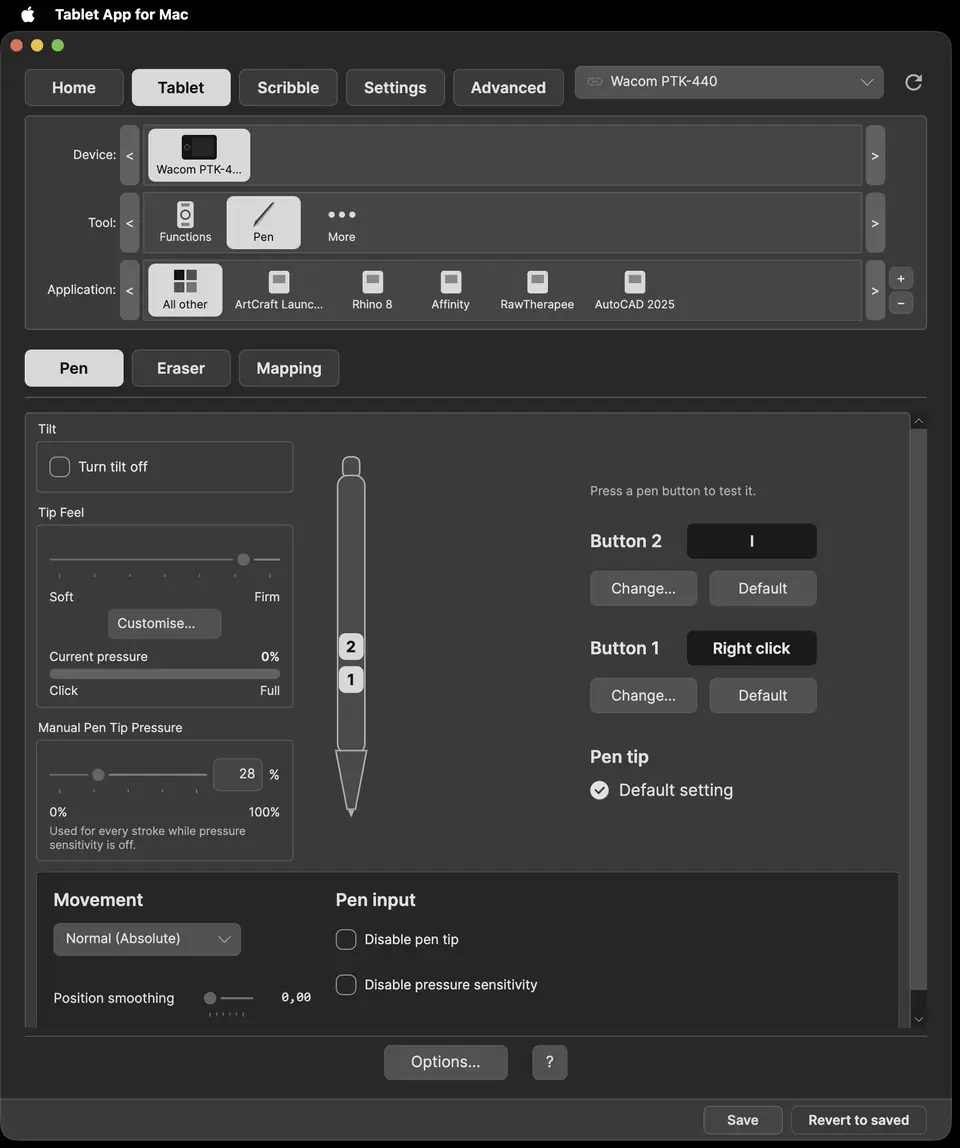
| Control | Default | Function |
|---|---|---|
| Tilt › Turn tilt off | Off | Stops sending tilt. Shared with the eraser. |
| Tip Feel | Middle (linear) | Soft to Firm pressure curve. |
| Customise… | Closed | Shows the curve, presets Soft, Linear (no curve), Hard, the input range sliders and Cut below input minimum (dead zone) (off). |
| Current pressure | Live | Pressure after the curve; tooltip shows the raw value. |
| Button 1 / Button 2 cards | Default (right click) / Default (middle click) | Change… opens the function editor; Default restores it. |
| Pen button test | Live | Press a barrel button: its number on the pen picture lights while held, and the line above the cards reads "Button 2 pressed." (or 1). |
| Movement | Normal (Absolute) | Absolute maps the pen to the screen; Mouse (Relative) moves the cursor like a mouse. |
| Position smoothing | 0.00 | Steadies the cursor, with some lag. |
| Disable pen tip | Off | The tip makes no strokes; the bar reads 0%. |
| Disable pressure sensitivity | Off | Every stroke uses the Manual Pen Tip Pressure while pressed, in every app. |
| Manual Pen Tip Pressure | 30% | Own frame under Tip Feel. The pressure used while pressure sensitivity is off (0 to 100%). |
Tablet › Eraser
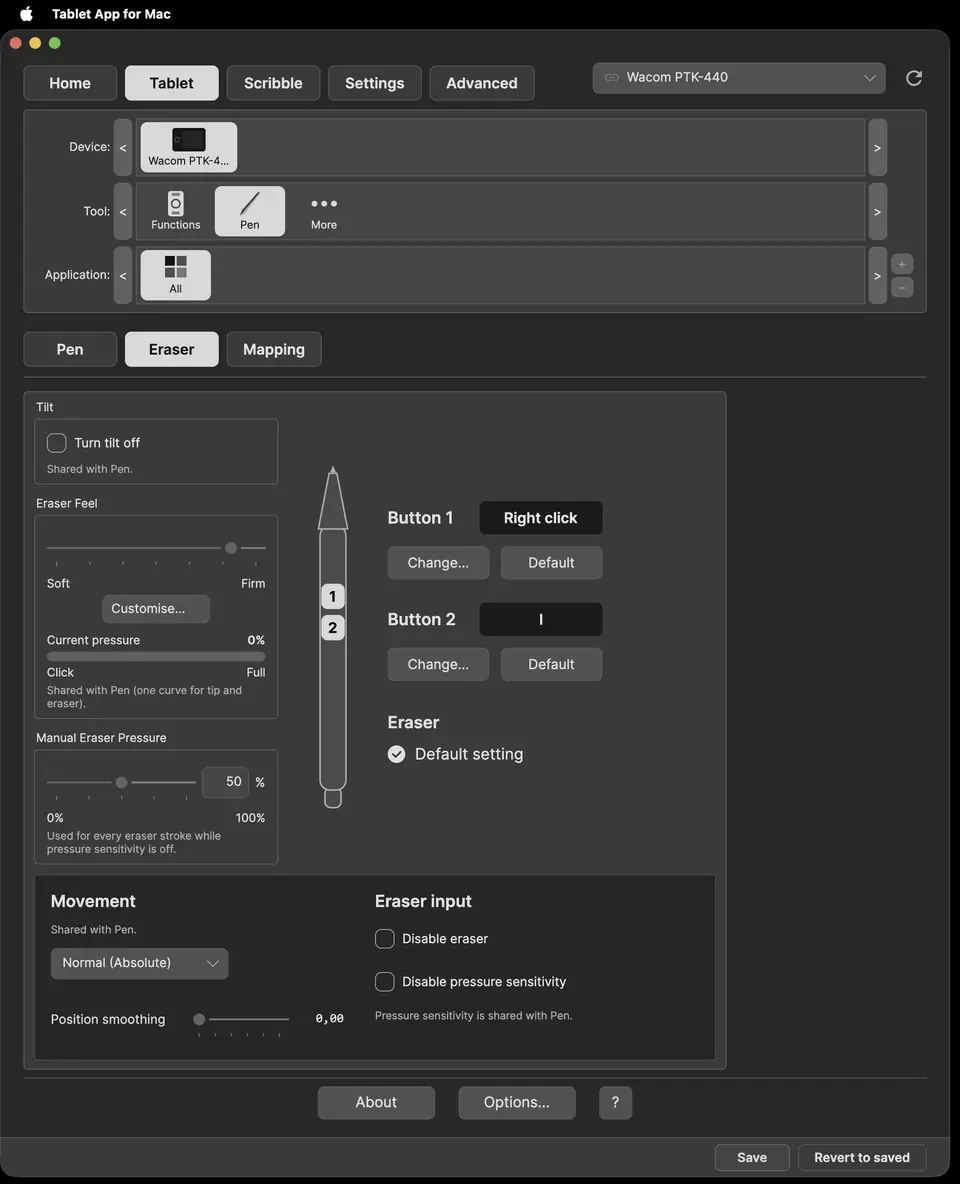
The Eraser tab has the same controls as Pen. Separate for the eraser: Disable eraser and Manual Eraser Pressure (own frame under Eraser Feel; used while pressure sensitivity is off). Shared with Pen (marked "Shared with Pen"): tilt, the Feel curve (one curve for tip and eraser), pressure sensitivity, Movement and Position smoothing. The button cards are the pen's barrel buttons.
Tablet › Mapping
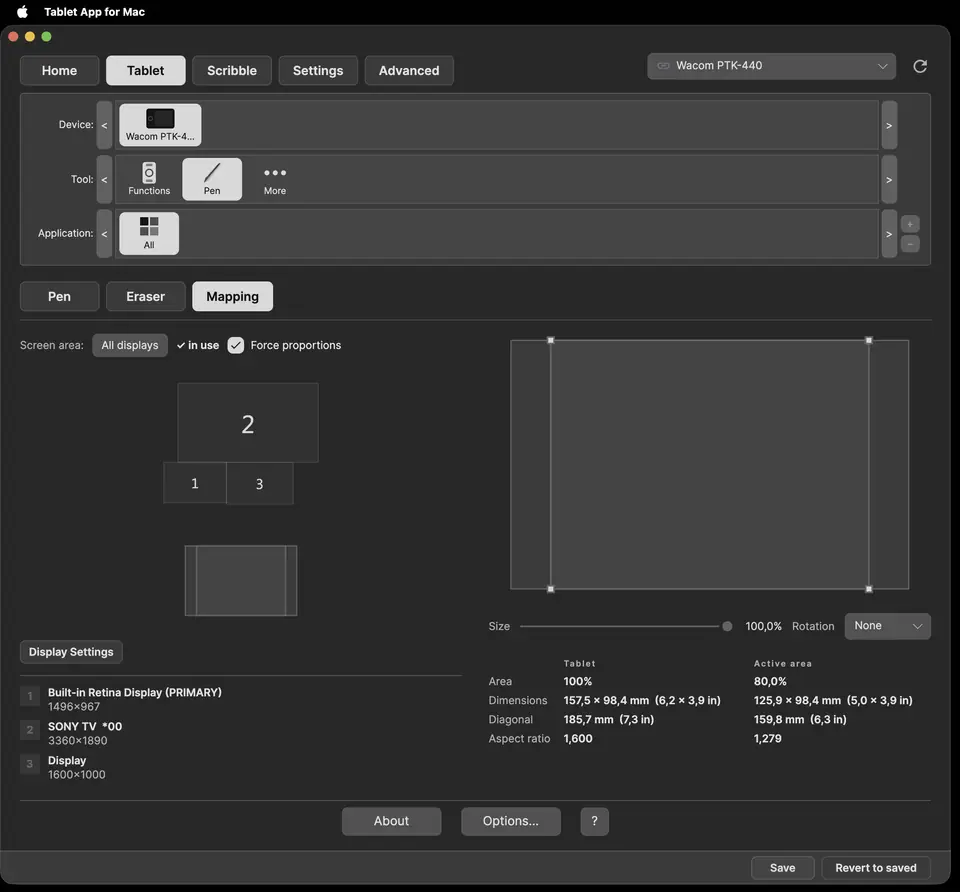
| Control | Default | Function |
|---|---|---|
| Active area | Whole tablet | Drag the area or its corners. |
| Rotation | 0° | 180° puts the ExpressKeys on the other side; 90° and 270° are portrait. Recalibrate after rotating. |
| Display / All displays | Main display | The display the area maps to. |
| Force proportions | On | Keeps the area at the display's aspect ratio. |
| Display Settings | – | Opens macOS Displays settings. |
Tablet › Functions › ExpressKeys
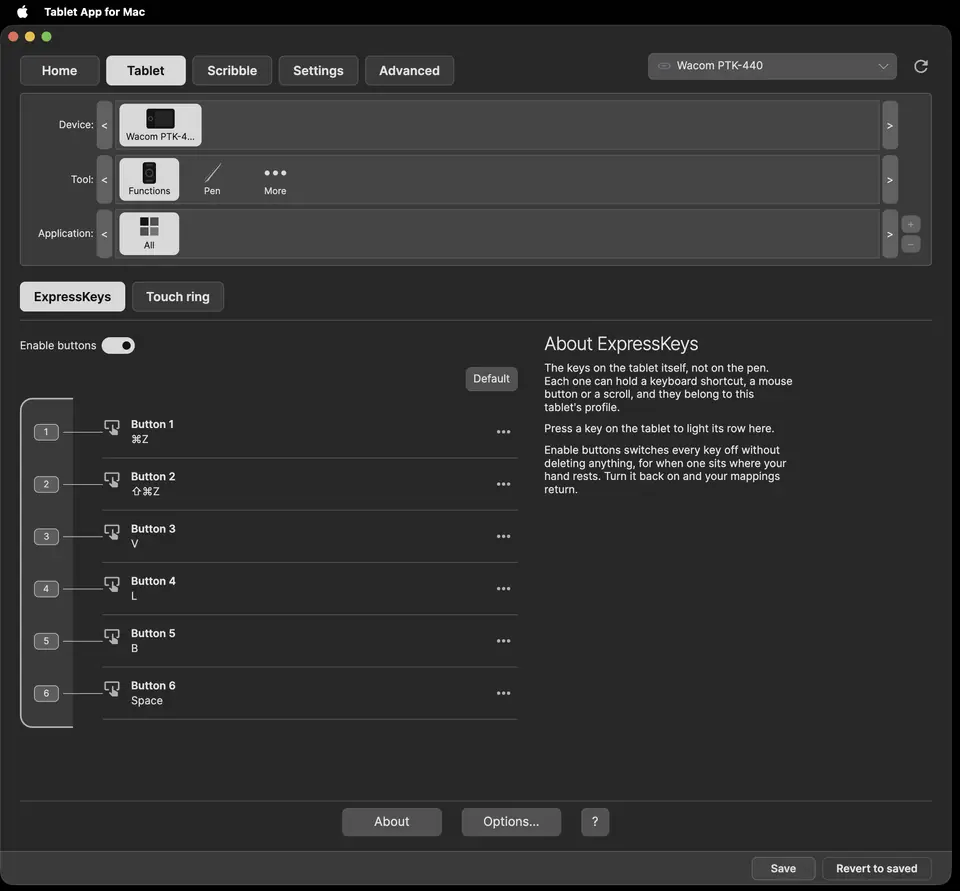
- Press a key on the tablet to light its row.
- Row ⋯: Edit… opens the function editor, Clear removes the action.
- The enable switch turns all ExpressKey actions off or on; actions are kept.
- Default: clears every ExpressKey action, after asking.
Function editor: Keyboard (a shortcut; Cmd, Ctrl, Shift and Option are held modifiers), Mouse (Left, Right, Middle click, Back and Forward button), Scroll (up, down, left, right), Media (Mute, Volume down, Volume up, Play / Pause, Previous track, Next track, Stop). Save, Cancel, Clear.
Tablet › Functions › Touch ring
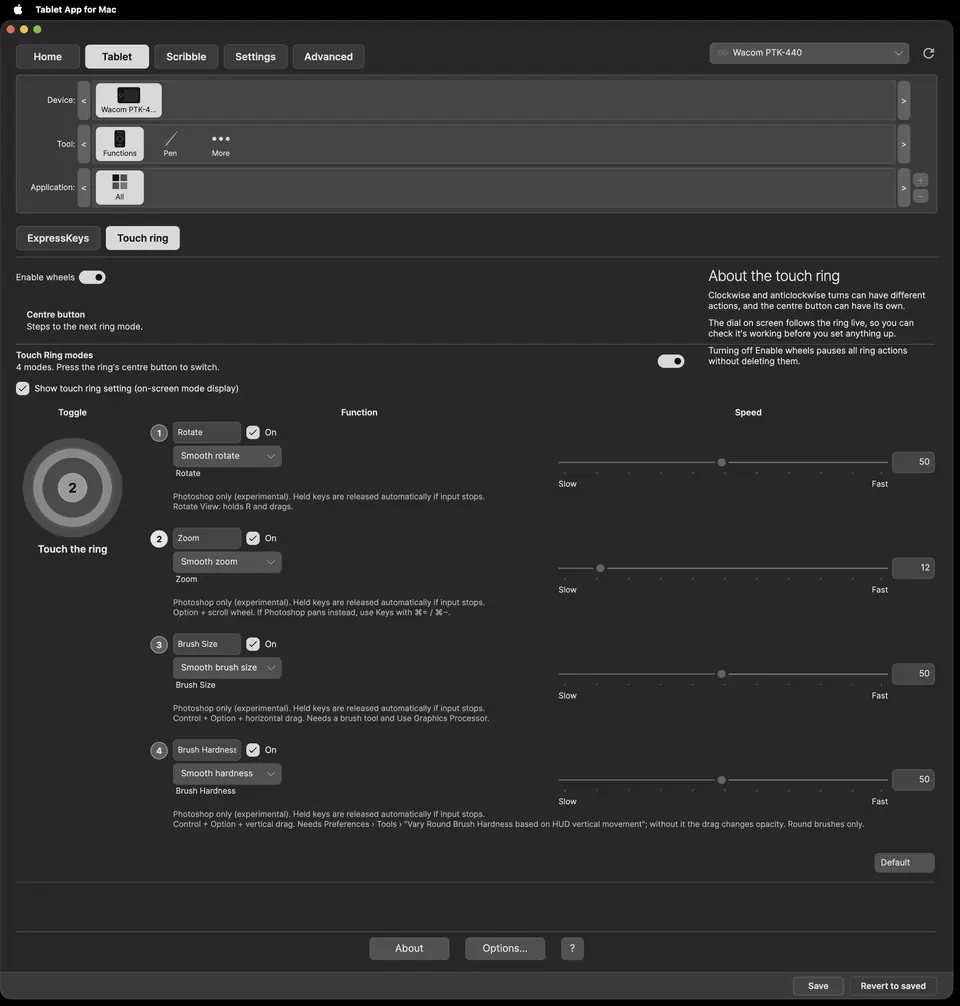
- Enable wheels: On. Pauses all ring actions without deleting them.
- Touch Ring modes: On. "4 modes. Press the ring's centre button to switch."
- Show touch ring setting (on-screen mode display): On. Shows the mode name when you switch.
- The dial follows the ring live: the dot sits under your finger. The angle and turn direction show under the ring, for example "0° · Clockwise". 12 o'clock is 0° and 3 o'clock is 90°.
- The active mode is highlighted; its number is lit, centred, and also shows on the centre button.
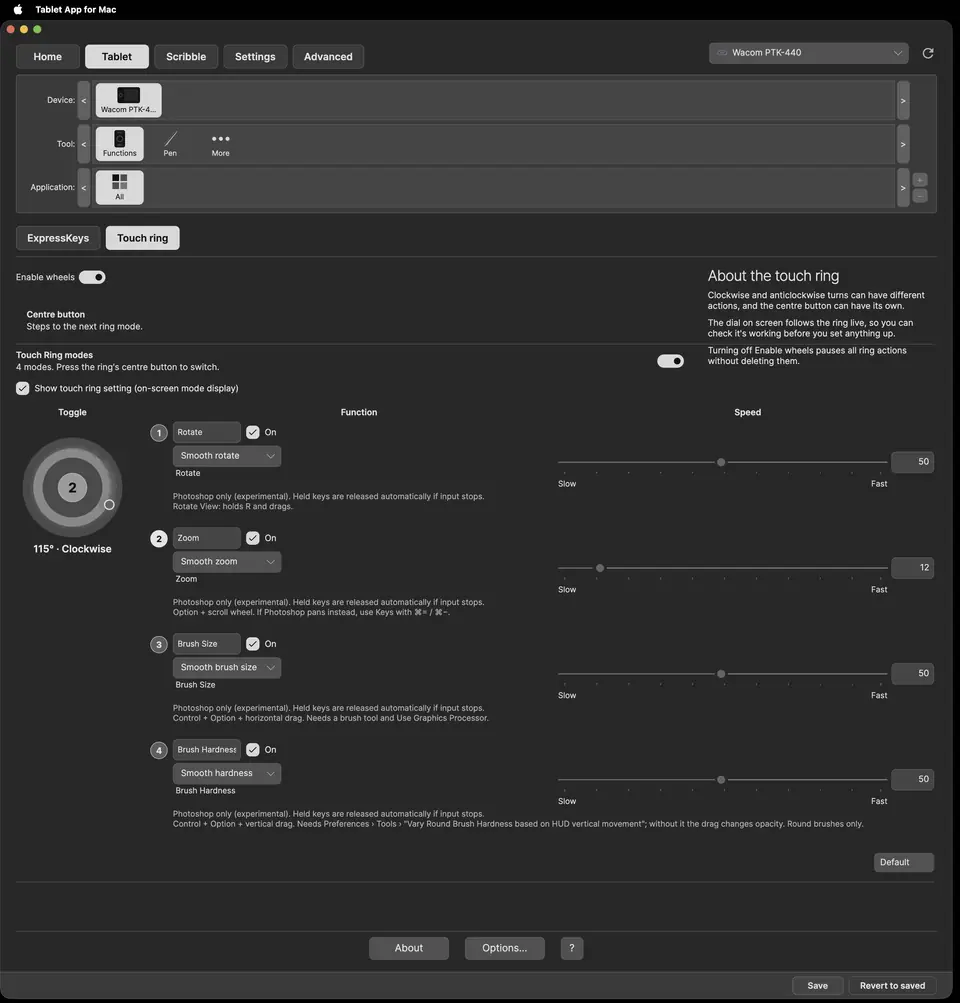
- On-screen centre button: moves the highlight to the next mode. The tablet's centre button switches the driver's mode.
- Per mode: name, On, Function (Keystroke…, or the experimental drag actions, Photoshop only), Speed (Slow to Fast, slider or typed), and the Clockwise and Anticlockwise keys.
- Default restores the four modes:
| Mode | Clockwise | Anticlockwise | Every |
|---|---|---|---|
| Rotate | Option+F13 | Option+F14 | 10° |
| Zoom | Cmd+= | Cmd+− | 30° |
| Brush size | ] | [ | 8° |
| Brush hardness | Shift+] | Shift+[ | 60° |
Tablet › More
- about: the tablet's model and features: digitiser resolution, pressure levels, pen buttons, Tablet buttons and wheels.
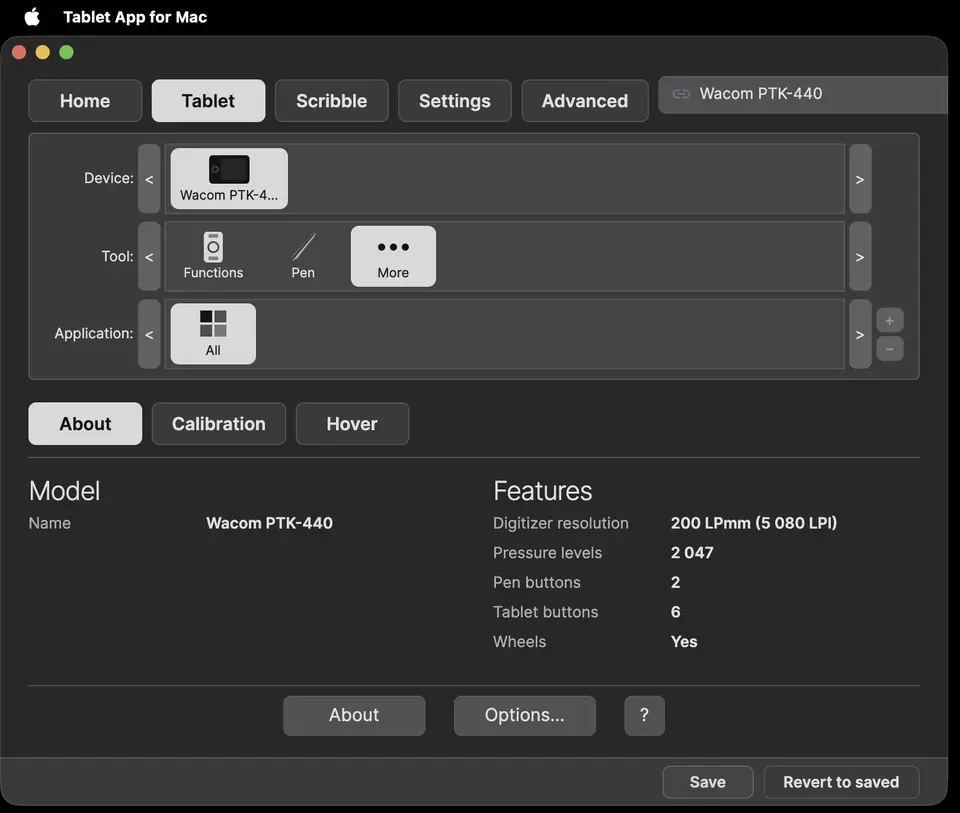
- calibration: Start shows full-screen targets; tap each, then Apply. More calibration actions: View report…, Export calibration…, Import calibration…, Clear calibration. The on/off switch compares with and without the correction. Calibrate only if the pointer sits away from the nib.
- hover (below): hover limit, off by default; 127 when first switched on (0 to 255). Stops cursor tracking past this distance.
- filters: the OpenTabletDriver filters on this tablet.
- json: the profile as the driver stores it.
Scribble
A test canvas with a precise crosshair cursor. Draws with the processed pressure, so the curve, Disable pen tip and the Manual Pressure are visible.
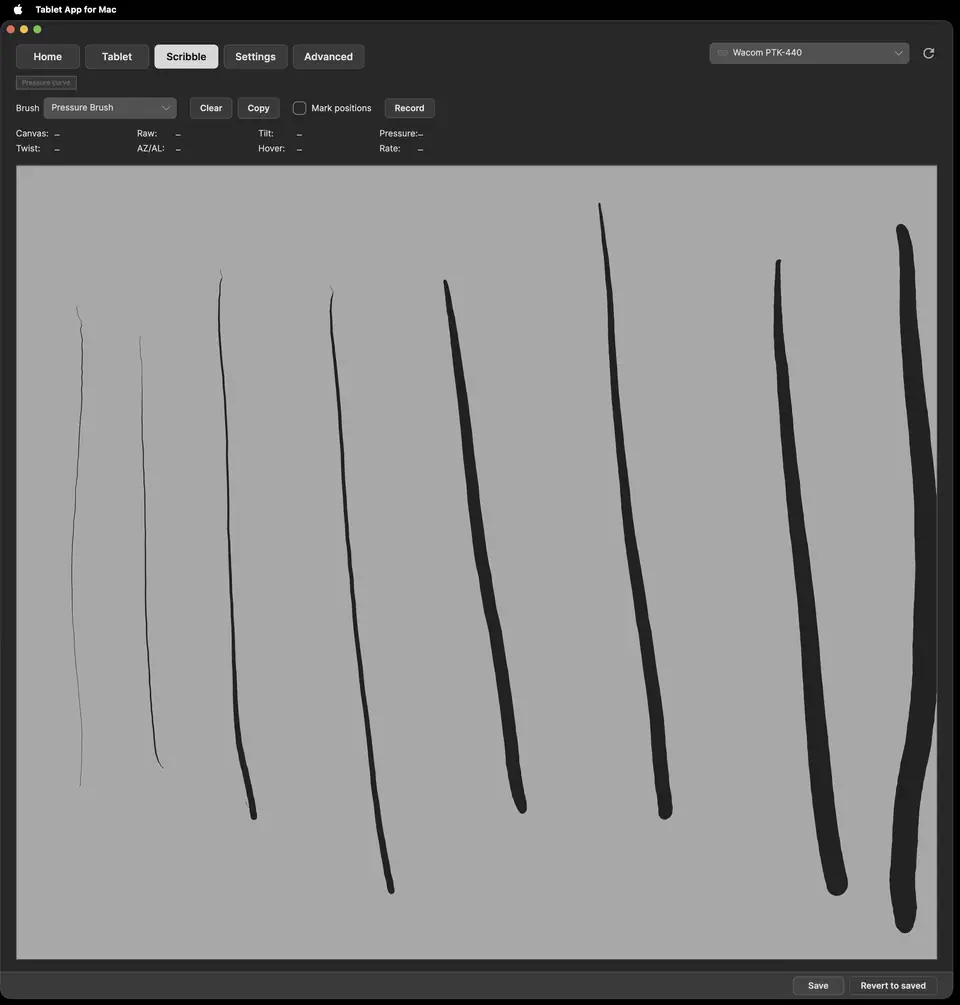
Mark positions dots each report. Clear, Copy. Record and Stop save a stroke recording.
Settings
- Theme: Themes (Graphite, Silver, Charcoal, Rose, Burgundy, Custom, System; default Graphite), brightness, Backdrops (Solid colour, Generated gradient, Add glow, Choose image…), Colours (Highlight colour, Card colour). Reset to defaults.
- Hotkeys: global shortcuts for tablet actions and Load a preset. Assign…, Clear. Default: not set.
- Presets: see Presets and saving.
- System: Open Login Items… to start the app at login.
Advanced
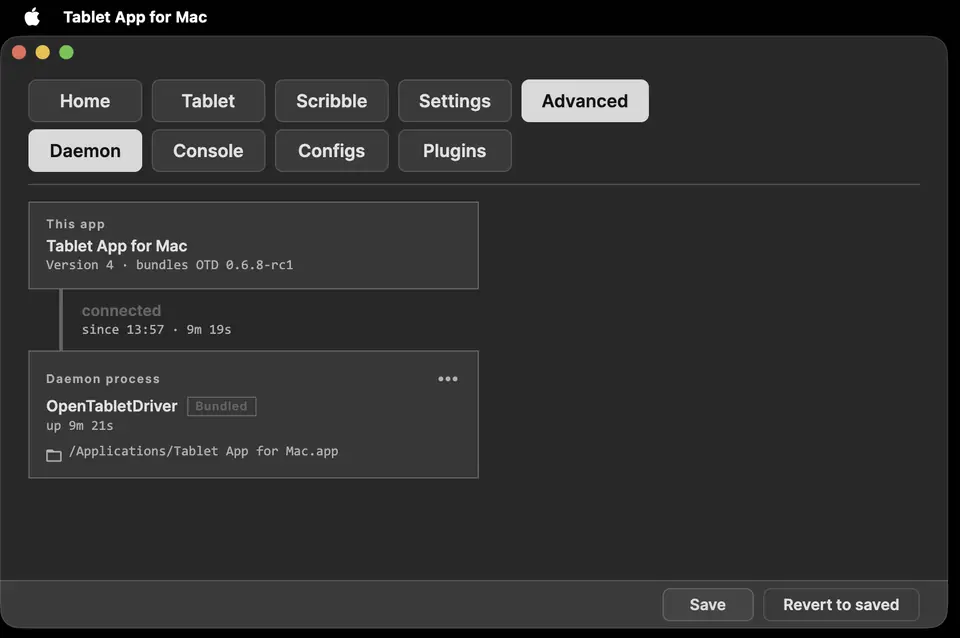
- Driver: status; Start, Restart, Stop, Open OpenTabletDriver's interface, Open the folder holding this driver.
- Plugins: Rescan plugin folder, Open plugin folder.
- Tablet configs: Check for more configs, Install, View.
- Console: severity filter, text filter, Auto-scroll (on), copy as text, Markdown or HTML, Clear.
- Diagnostics: Start and Stop live reports.
About and Options
About shows the version and links: Get help (this manual), Supported tablets, Source code, Releases, User manual, Credits and licences, Feedback. Feedback is read once a week. Options… opens Settings.
Presets and saving
- Changes apply at once; the footer shows Save and Revert to saved while there are unsaved changes.
- Save writes the settings. Revert to saved goes back to the last save.
- After a shutdown or crash with unsaved changes, the app offers the snapshot again at the next launch.
- Save as preset stores the whole configuration under a name. Preset ⋯: Update from current settings, Duplicate, Rename…, Delete. Load applies it.
Quitting
- Cmd+Q closes the window. The app stays in the menu bar and the tablet keeps working.
- Quit in the menu bar menu stops the app and its driver. With unsaved changes it asks "Save changes before quitting?": Cancel keeps the app open, Don't Save quits without saving, Save saves and quits.
- Quitting also happens at shutdown and logout; unsaved changes are then kept and offered at the next launch.
Tested system and tablet
macOS 27.0.1 on Apple silicon, Wacom Intuos4 Small (PTK-440). Nothing else has been tested.
Wacom driver conflict
The Wacom driver and OpenTabletDriver cannot both use the tablet. Quit or uninstall the Wacom driver before using this app. Home shows a warning while it is running.
Updating
- Replace the app in Applications with the new build.
- macOS may treat the new build as a different app, even when the name is the same. Turning a permission off and on again is often not enough. In System Settings › Privacy & Security, remove Tablet App for Mac from Input Monitoring and from Accessibility (or Device Control and Data Access) with −, then add it again with + — twice if needed — and relaunch.
Going back to an earlier build
If the current version doesn't work for you, download one of the two before it: Version 13 or Version 12. Replace the app in Applications with it. Settings are kept. Re-add the permissions as under Updating if needed.
Uninstalling
- Quit from the menu bar.
- Delete the app from Applications.
- Remove its entries from Input Monitoring and Accessibility with −.
- Remove its Login Item if you added one.
- Optional: delete its settings folder in ~/Library/Application Support.
Credits and licences
Tablet App for Mac is a modified version of OpenTabletArtist by TheSevenPens (GPL-3.0) and uses OpenTabletDriver (LGPL-3.0). The full list of packages and licence texts is on the Credits and licences page.
Glossary
- Tip Feel: the pressure curve, from Soft to Firm.
- Touch Ring modes: up to four sets of ring actions, switched with the centre button.
- Preset: a named copy of the whole configuration.
- Application row: per-app settings; All applies everywhere else.
- Shared with Pen: an Eraser setting that is the same setting as on the Pen tab.
Not written here
Troubleshooting and the per-app notes (Photoshop, Affinity, PhotoCraft) are written separately. Per-app shortcuts: not yet tested.
Report a problem or suggest a feature
Bug reports ask for the app version (About), macOS version and tablet model. Questions go to Discussions. Feedback is read once a week.